Agent Console
Monitor, message, start, rename, kill, and connect running AI agents from one multi-agent terminal UI.
On this page
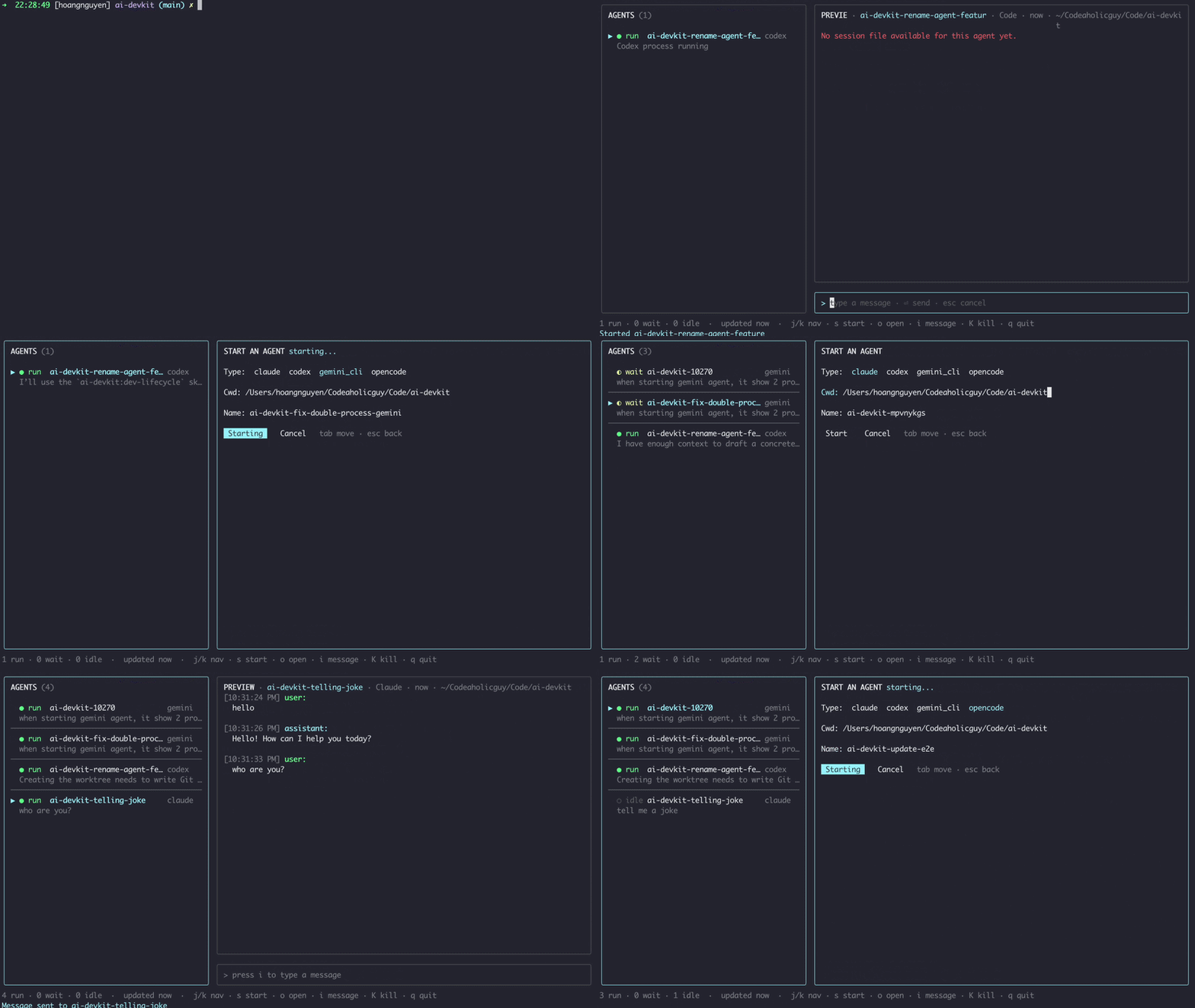
The agent console command opens an interactive terminal UI for working with multiple AI agents at once. Use it when you want a multi-agent control room for monitoring active sessions, sending quick messages, starting managed agents, renaming or stopping agents, and connecting configured messaging channels without switching between several terminal windows.
ai-devkit agent console
Prerequisites#
- AI DevKit installed globally (see Getting Started)
- An interactive terminal:
agent consolerequires a TTY - Supported agent tools installed for the workflows you want to use, such as Claude Code, Codex, Gemini CLI, or opencode
- tmux installed if you want to start or kill managed agents from the console
- A configured Telegram or Slack channel if you want to start remote channel bridges from the console (see Channel)
What the Console Shows#
The console has two main areas:
- Agent list: shows detected agents, status, name, agent type, recent summary or project path, and a
remotemarker when a channel bridge is connected. - Preview pane: shows the selected agent's recent conversation with Markdown formatting, metadata, project path, and connected channel name when one is active.
While the selected agent is running, the preview shows a live working spinner on its bottom row. The row returns to conversation content when the agent is no longer running; terminals reporting TERM=dumb use an ASCII spinner.
On narrow terminals, the console hides the preview pane. Resize the terminal wider to show both panes.
Hotkeys#
Press h inside the console to show the built-in help panel.
| Key | Action |
|---|---|
/ | Filter agents by name; press Esc to clear the filter |
j / Down | Select next agent |
k / Up | Select previous agent |
s | Start a new managed agent |
r | Rename the selected agent |
p | Pin or unpin the selected agent |
c | Start a Telegram channel for the selected agent |
C | Stop the selected agent's Telegram channel |
M | Show or hide the recent-memory pane |
o | Open the selected agent terminal |
v | Focus the selected agent's detail/chat pane |
i / m | Message the selected agent |
K | Kill the selected agent |
h | Show or hide the help panel |
q | Quit agent console |
Common Workflows#
Monitor Running Agents#
Start the console from any terminal to coordinate local multi-agent coding work:
ai-devkit agent console
Use j and k to move between agents. The preview pane updates as you select agents and renders common Markdown formatting. Press / to filter the list by agent name; press Esc to clear the filter. Press p to pin or unpin an agent. Pinned agents are grouped at the top of the list.
The bottom-row working animation reflects the selected agent's last observed running status. It continues while text entry temporarily pauses polling and disappears for waiting, idle, or unknown agents.
Press v to focus the detail/chat pane, then use j and k to scroll. Press Esc or Left to return to the agent list. Press M to toggle a read-only list of recent memory items.
Send a Message#
Select an agent, press i or m, type your message, then press Enter.
The console sends the message to the selected agent using the same terminal control path as:
ai-devkit agent send "your message" --id <agent-name>
If the agent is not waiting for input, AI DevKit may still send the message, but the agent might not process it until its terminal is ready.
Start a Managed Agent#
Press s to open the start-agent pane. Fields are visited in order: type, mode, cwd, name, task, args, then submit/cancel:
- In the type field, move through the vertical list with
Up/Downorj/k; types whose harness is unavailable are marked so you can pick a working one. - In the mode field, use
Left/Rightorh/lto switch betweeninteractiveanddurable(durable is limited to claude, codex, and pi). - cwd accepts
~expansion; pressCtrl+Rin that field to cycle recently used project directories. task sets an initial prompt and args passes extra harness CLI arguments. TaborDownmoves to the next field;Shift+TaborUpmoves back.Enteradvances through fields and submits from the name field;Esccancels.- While a start is pending, the pane shows elapsed time and lets you cancel. The pane remembers your last type and cwd.
Supported start types:
| Type | Agent |
|---|---|
claude | Claude Code |
codex | Codex |
copilot | GitHub Copilot |
gemini_cli | Gemini CLI |
grok_cli | Grok CLI |
antigravity_cli | Antigravity CLI |
opencode | opencode |
pi | Pi |
kiro | Kiro CLI |
devin | Devin |
muse | Muse Code |
Starting an agent from the console uses the configured managed runtime (tmux by default, or Herdr when agentRuntime.provider is set to herdr in the global ~/.ai-devkit/.ai-devkit.json file). If tmux is not installed or the selected agent command is not in PATH, the console shows an error.
Rename an Agent#
Select an agent and press r. Agent names must be 2-64 characters, use lowercase letters, numbers, and hyphens, and start and end with a letter or number.
Renaming updates AI DevKit's local agent registry. It does not rename the project directory.
Open an Agent Terminal#
Select an agent and press o to focus its terminal window. This uses the same terminal focusing behavior as:
ai-devkit agent open <agent-name>
Terminal focusing works with tmux, WezTerm, Ghostty, iTerm2, and Apple Terminal. VS Code terminal is not supported for external focus control.
Stop an Agent#
Select an agent and press K. Press Enter or y to confirm, or Esc or n to cancel.
Managed agents started through AI DevKit are stopped together with their tmux session.
Channel Controls#
The console can start and stop configured Telegram or Slack channel bridges for the selected agent.
First configure a channel:
ai-devkit channel connect telegram
# or: ai-devkit channel connect slack --name work-slack
Then open the console:
ai-devkit agent console
Select an agent, press c, choose a configured channel, then press Enter. The console starts the channel bridge in the background. The agent list shows remote, and the preview pane shows the connected channel name.
Press C on the selected agent to stop its running channel bridge.
If no channels are configured, the channel picker shows:
No channels configured. Run channel connect first.
For more channel setup details, see Channel.
Troubleshooting#
"agent console requires an interactive terminal (TTY)"#
Run ai-devkit agent console directly in a terminal, not from a non-interactive script or redirected command.
"No running agents"#
Start an agent in another terminal, or press s to start a managed agent from the console.
Preview says "No session file available"#
The selected agent has not created a readable session file yet. Send a message or wait for the agent to produce conversation output, then check the preview again.
"No channels configured"#
Run:
ai-devkit channel connect telegram
# or: ai-devkit channel connect slack --name work-slack
Then reopen the channel picker with c.
Channel start fails#
Check channel status and logs:
ai-devkit channel status
If a bridge is already running for that channel, stop it first:
ai-devkit channel stop <channel-name>